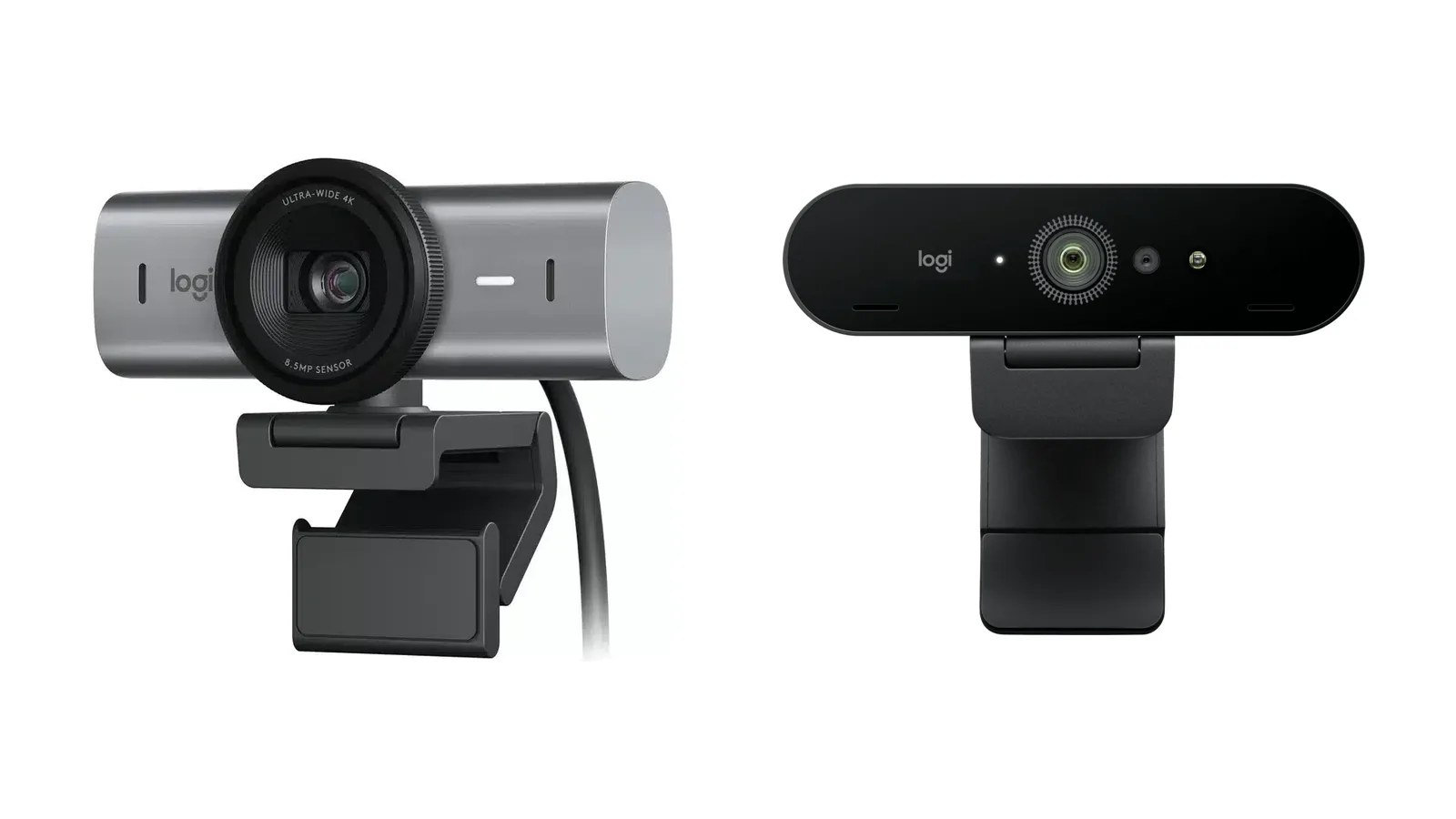
The short answer: buy the Logitech MX Brio (about $200) for the better picture in ordinary room light. Its larger-pixel Sony STARVIS sensor is the reason Logitech claims twice the image detail of the Brio 4K in dim or backlit rooms, and it adds noise-reducing beamforming mics, a built-in privacy shutter and Show Mode for sharing your desk. Buy the Brio 4K (about $170) if you sign in to Windows with your face: it has the infrared sensor for Windows Hello that the MX Brio lacks. It’s also the easier fit for an older computer with only USB-A ports.
Both shoot 4K at 30fps and 1080p at 60fps, with the same three field-of-view settings. The specs below come from Logitech’s own product pages and support articles, and the prices from Logitech and Amazon in November 2026. We haven’t tested these webcams side by side.
MX Brio vs Brio 4K at a glance
| Logitech MX Brio | Logitech Brio 4K | |
|---|---|---|
| Image sensor | 8.5MP Sony STARVIS, 70% larger pixels | 13MP |
| Video | 4K at 30fps, 1080p at 60fps | 4K at 30fps, 1080p at 60fps, 720p at 90fps |
| Field of view | 90°, 78° or 65° | 90°, 78° or 65° |
| Digital zoom | 4x | 5x |
| Light handling | RightLight 5 with HDR and face-based adjustment | RightLight 3 with HDR |
| Microphones | Two beamforming, noise-reducing | Two omnidirectional |
| Privacy shutter | Built in | Clip-on |
| Windows Hello | No | Yes (infrared sensor) |
| Show Mode | Yes | No |
| Connection | USB-C to USB-C cable, needs a USB 3.0 USB-C port | USB-A or USB-C |
| Software | Logi Options+ or G HUB | Logi Tune |
| Weight (camera) | 137 g | 65 g |
| Warranty | 1 year | 3 years |
| Price at Logitech | $199.99 | $169.99 |
Picture quality: why the MX Brio looks better in dim rooms
On paper the Brio 4K has more megapixels, 13 against 8.5. The MX Brio’s Sony STARVIS sensor uses fewer, larger pixels, 70% larger than the Brio 4K’s according to Logitech, and larger pixels gather more light. Logitech claims “2x finer image detail and face visibility” over the Brio 4K in difficult light: low light, or a window behind you, not a brightly lit studio.
The processing is newer too. Logitech’s support article on the two cameras says the MX Brio’s RightLight 5 adjusts exposure for your face, where the Brio 4K’s RightLight 3 adjusts for the center of the frame, and that its software gives finer control, adding tint and vibrance. Both cameras top out at 4K at 30fps, which matters less than it sounds: most video-call services send your picture at 1080p or lower anyway.
Windows Hello: the Brio 4K’s big extra
The Brio 4K has an infrared sensor, so it can sign you in to Windows with Windows Hello face recognition. The MX Brio has none: Logitech doesn’t list Windows Hello for it, and its comparison table shows no infrared sensor on the MX Brio 705, the business version of the same camera. If you use face login every day, that alone can decide it.
Microphones, privacy shutter and Show Mode
Both have two microphones with a range of about 1.2 meters. The MX Brio’s are beamforming mics that focus on your voice and reduce background noise; the Brio 4K’s are omnidirectional. For a podcast or a stream, a separate microphone will still sound better than either.
The MX Brio’s privacy shutter is built in: you turn a ring on the front to cover the lens. The Brio 4K uses a clip-on cover that you can lose. Show Mode is new: tilt the MX Brio down toward your desk to share your notes or sketches on a call; a built-in accelerometer detects the tilt and switches the view. The Brio 4K can’t do that.
USB, software and mounting
The MX Brio comes with a USB-C to USB-C cable, and Logitech asks for a USB-C port that supports USB 3.0. If your computer only has the older rectangular USB-A ports, the Brio 4K, which Logitech lists for USB-A or USB-C, plugs straight in. The MX Brio works with Windows 10 or later and macOS 10.15 or later, and its settings live in Logi Options+ or G HUB. The Brio 4K uses Logi Tune. Logitech’s apps are for Windows and macOS only; on a Chromebook, both work as standard webcams.
Both come with a monitor clip and a standard 1/4-inch tripod thread. The MX Brio is the bigger, heavier camera: 137 grams against 65.
Is it worth upgrading from a Brio 4K?
Only for specific reasons. The resolution and frame rates are the same, so in a well-lit room the gain is modest. Upgrade if your room is dim or you sit with a window behind you, if you want the noise-reducing mics, Show Mode or a shutter you can’t lose. Keep the Brio 4K if you rely on Windows Hello, or if it already looks good in your light. And if you’re buying new and want the cheaper of the two, the Brio 4K is still sold by Logitech and is about $30 less.
What about the Elgato Facecam 4K?
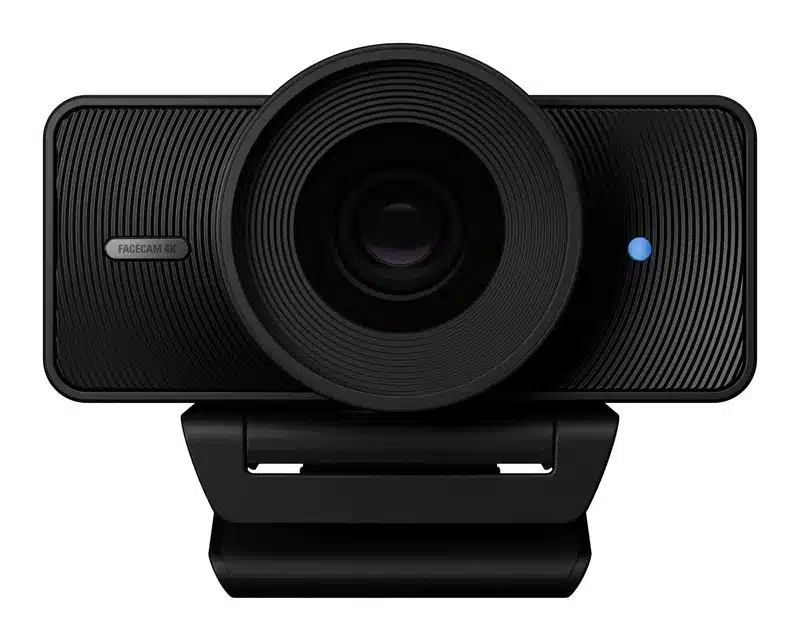
If you sit in the same spot to stream or record a podcast, look at the Elgato Facecam 4K too. It records 4K at 60fps, twice the frame rate of either Logitech, on a 1/1.8-inch Sony STARVIS 2 sensor, with camera-style manual controls in Elgato’s Camera Hub app and a 49mm thread for lens filters. The trade-offs: focus is fixed, sharp from about 30 to 120 cm at 4K, there’s no built-in microphone, and 4K at 60fps needs a USB 3.0 port. It’s about $160 on Amazon. Our best webcams for podcasting guide compares it with the MX Brio and the other picks.
Our verdict
Choose the MX Brio if picture quality in real-world light matters most, or if you’d use the beamforming mics, Show Mode or the built-in shutter. Choose the Brio 4K if you want Windows Hello face login, need USB-A, or want to save about $30 for the same 4K and 1080p modes. If you’d rather use a real camera for a shoot or a podcast, see our best cameras for podcasting.
Logitech MX Brio
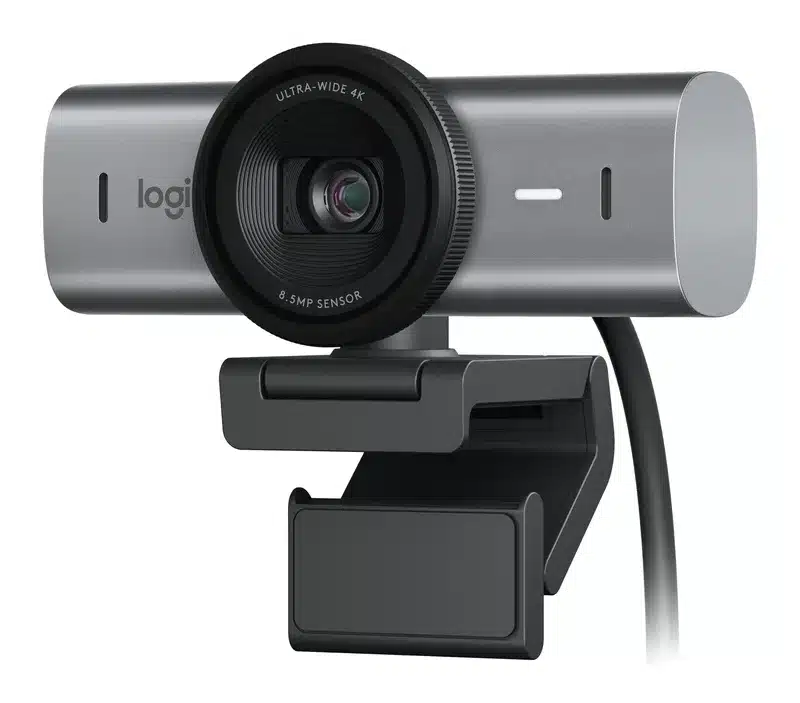
8.5MP Sony STARVIS sensor, 4K at 30fps or 1080p at 60fps, beamforming mics, built-in privacy shutter and Show Mode. Graphite, Pale Gray or Black.
Logitech Brio 4K
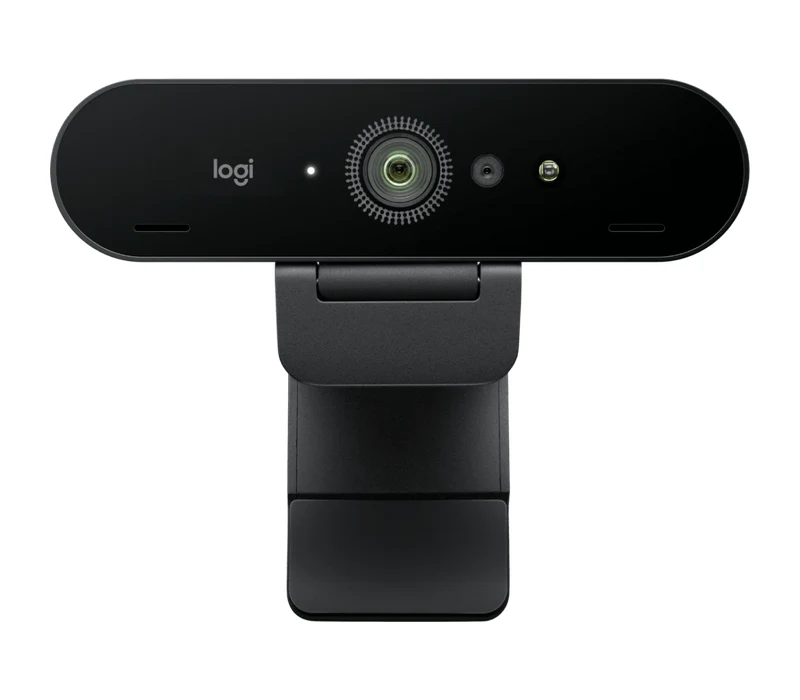
13MP sensor, 4K at 30fps, 1080p at 60fps or 720p at 90fps, Windows Hello infrared sensor, 5x digital zoom and a clip-on privacy shutter.
Frequently asked questions
Is the Logitech MX Brio better than the Brio 4K?
For picture quality in dim or backlit rooms, yes: Logitech says its larger-pixel sensor gives twice the image detail. It also adds beamforming mics, a built-in privacy shutter and Show Mode. The Brio 4K is cheaper and has Windows Hello, which the MX Brio lacks.
Does the Logitech MX Brio support Windows Hello?
No. Logitech doesn’t list Windows Hello for the MX Brio, and it has no infrared sensor. The Brio 4K does support Windows Hello face sign-in.
Can the MX Brio record 4K at 60fps?
No. Both the MX Brio and the Brio 4K record 4K at 30fps, or 1080p at 60fps. For 4K at 60fps, look at the Elgato Facecam 4K.
Is the Logitech Brio 4K still worth buying?
Yes, if you want Windows Hello face login, need a USB-A connection or want to save about $30. Logitech still sells it, and it records the same 4K and 1080p modes as the MX Brio.
Does the MX Brio work with a Mac?
Yes, with macOS 10.15 or later and a USB-C port that supports USB 3.0. Logi Options+ adds the image controls on a Mac.
What is the MX Brio 705 for Business?
It’s the business version of the MX Brio, sold for company deployments. Logitech’s comparison lists the same 4K at 30fps, beamforming mics, built-in privacy shutter and no infrared sensor.
Which is better, the Logitech C920 or the Brio 4K?
The Brio 4K. The C920 is a 1080p webcam at 30fps, while the Brio 4K adds 4K, 1080p at 60fps, HDR, three field-of-view settings and Windows Hello.
As an Amazon Associate, Artistic Hive earns from qualifying purchases.